How to install linux software - my favs apps!
Hi, this document contains the software that I use in my Ubuntu 20.04 or Ubuntu 20.04 MATE to make the typical tasks.
I recommend this software because is my fav, it’s the software I use and I’ve installed in my computer.
The categories are:
 Office suite
 Fonts
Fonts Text Editors
 Web browsers
 Chat clients
 FTP clients
 PDF software
 Converter utilities
 LaTeX (TexLive base distribution)
 Music
Music Video
Video Images-bitmap images
 Images-vectorial images
 Compression software
 Network tools
 Calendar or todo tasks apps
 Video call or web conferences
 For teaching
 Back to top
Office suite
LibreOffice
LibreOffice is a powerful and free office suite, a successor to OpenOffice(.org), used by millions of people around the world. Its clean interface and feature-rich tools help you unleash your creativity and enhance your productivity. LibreOffice includes several applications that make it the most versatile Free and Open Source office suite on the market: Writer (word processing), Calc (spreadsheets), Impress (presentations), Draw (vector graphics and flowcharts), Base (databases), and Math (formula editing).
- Install:
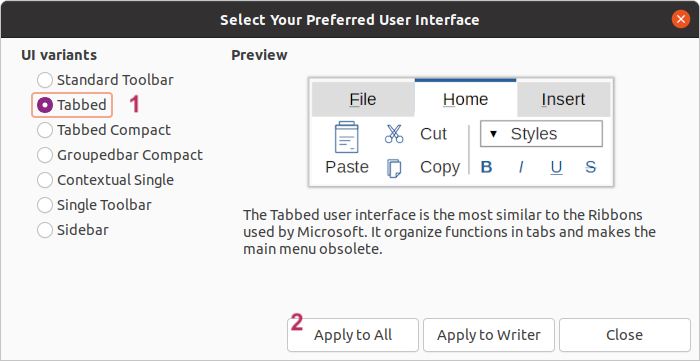
sudo snap install libreoffice - Activate Ribbon style interface. Open the
LibreOffice Writerapplication, clic ViewMenu->User Interface. ChooseTabbedoption, finallyApply to All.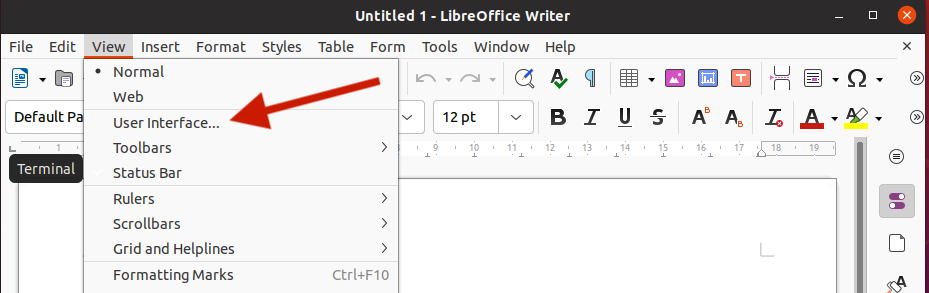
Fonts
Microsoft fonts.
This package allows for easy installation of the Microsoft True Type Core Fonts for the Web including:
- Andale Mono
- Arial Black
- Arial (Bold, Italic, Bold Italic)
- Comic Sans MS (Bold)
- Courier New (Bold, Italic, Bold Italic)
- Georgia (Bold, Italic, Bold Italic)
- Impact
- Times New Roman (Bold, Italic, Bold Italic)
- Trebuchet (Bold, Italic, Bold Italic)
- Verdana (Bold, Italic, Bold Italic)
- Webdings
- Install:
sudo apt install ttf-mscorefonts-installer
sudo fc-cache -vr
If you are interested and know more details about microsoft fonts and Linux, you can read: How to install microsoft fonts in Ubuntu - Manual
Text Editors
ReText
A markdown editor with live preview capabilities.
- Install it!
sudo apt install retext - Improve visualization: clic in
EditMenu ->Use webkit renderer. This allows scroll sincronization between code and preview windows.
Optional step:
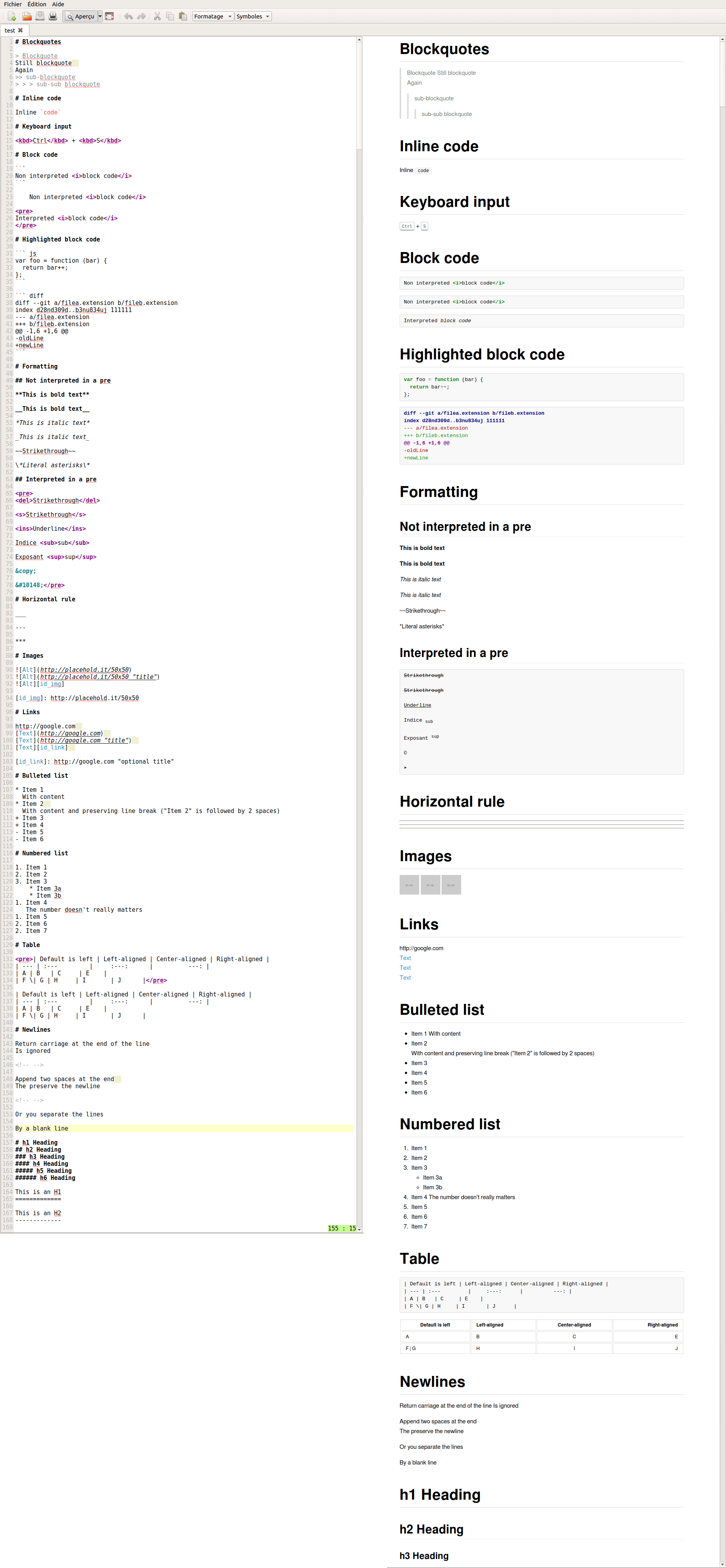
Install aditional beatiful and useful style for preview window. This style was designed by MikePeralta1
Copy these files to ~/.config/ReText project/ folder.
After that your preview will appears like this.
Remarkable
It’s a markdown editor. It’s good but now their “live preview” feature is ⚠️NOT working⚠️ in Ubuntu 20.04. Meanwhile it receives an update, I am using ReTextc Editor.
Website: https://remarkableapp.github.io/
VScodium
Website:
https://vscodium.com/#install
- Add the GPG repository key:
wget -qO - https://gitlab.com/paulcarroty/vscodium-deb-rpm-repo/raw/master/pub.gpg | gpg --dearmor | sudo dd of=/usr/share/keyrings/vscodium-archive-keyring.gpg - Add the repository:
echo 'deb [ signed-by=/usr/share/keyrings/vscodium-archive-keyring.gpg ] https://download.vscodium.com/debs vscodium main' | sudo tee /etc/apt/sources.list.d/vscodium.list - Update then install vscodium:
sudo apt update && sudo apt install codium
ghostwriter
Free and Open Source Markdown editor. No excuses. No distractions. Just write.
Specs: Distraction-Free Writing. Themes. Live Preview. Navigation. Focus mode. Document and Session Statistics
Website: https://ghostwriter.kde.org/download/#linux
Sublime Text (Versión 4)
Website:
https://www.sublimetext.com/download
- Install the GPG key:
wget -qO - https://download.sublimetext.com/sublimehq-pub.gpg | sudo apt-key add - - Ensure apt is set up to work with https sources:
sudo apt-get install apt-transport-https - Add the repository:
echo "deb https://download.sublimetext.com/ apt/stable/" | sudo tee /etc/apt/sources.list.d/sublime-text.list - Update apt sources and install Sublime Text:
sudo apt-get update
sudo apt-get install sublime-text
Web browsers
Firefox is installed in Ubuntu, if you want another web browser try Chromium (Google Chrome is based in Chromium).
Chromium
sudo apt-get install chromium-browser
Chat clients
WhatsDesk
If you need a WhatsApp client in Linux, there is not a official app. WhatsDesk is a good option!, it pretty much works the same way as WhatsApp web.
Install:
$ sudo snap install whatsdesk
Website:
https://snapcraft.io/whatsdesk
WhatsApp for linux - app
It’s an unofficial WhatsApp desktop application written in C++ with the help of gtkmm and WebKitGtk libraries. It’s a lightweight option to use a WhatsApp client.
How to install:
$ sudo snap install whatsapp-for-linux
Website:
https://github.com/xeco23/WasIstLos
Ferdium
«All your services in one place, built by the community». Ferdium is an app for using multiple services: WhatsApp, Telegram, Skype, Google chat, Slack, WeChat and many more. And it has included Todoist, a task manager.
If you need all-in-one communication solutions, Ferdium is a great solution.
Website:
https://ferdium.org/
How to install:
# to install the latest stable release:
snap install ferdium
# connect additional interfaces:
snap connect ferdium:camera
snap connect ferdium:audio-record
Franz
«Franz is your messaging app for WhatsApp, Facebook Messenger, Slack, Telegram and many many more.»
Multiplattform chat software available for Linux, Windows and MacOS. And have a simple TO DO tasks manager too!.
Website:
https://meetfranz.com/
Steps:
- Download the
.debfile from https://meetfranz.com/#download - Install it!. Right click on the DEB file (the file you have downloaded) and select Open With Software Install; or Doble clic in the file to open the Software Install.
- Clic in Install Button.
- Installing software always requires administrator privileges. Enter your password to proceed with the installation.
Option B, you can install manually typing this:
$ sudo dpkg -i franz_5.6.1_amd64.deb
in case of error: dpkg: error processing package
$ sudo apt install -f
FTP clients
Filezilla
$ sudo apt-get install filezilla
PDF software
Okular viewer
This allows you view and annotate pdfs.
- Install using the snap package manager. Open a Terminal.
$ sudo snap install okular
Pdftk
pdftk is a command-line tool for working with PDF files. It is commonly used for client-side scripting or server-side processing of PDF files.
Using pdftk is a tool to edit pdf files: divide, combine, encrypt, decrypt, decompress, recompress and repair.
- Install
$ sudo snap install pdftk - Examples of use:
a) Cut or extract some pages:
pdftk first.pdf cat 2 5 6 9 output 1.pdf
b) Extract some pages from 2 files:
pdftk A=first.pdf B=second.pdf cat A2 A5 A6 A9 B6 B7 B15 B19 output final.pdf
Converter utilities
Pandoc
Website: pandoc.org
Pandoc is a free-software document (markup format) converter. It works with many formats: HTML, LaTeX, docx, ODT, RTF, pptx, epub, DocBook, JSON, Markdown,reStructuredText, man, etc.
To install, execute this script:
03_install-pandoc-3.5-ubuntu-v24.04.sh
pandoc-crossref
pandoc-crossref is a pandoc filter for numbering figures, equations, tables and cross-references to them.
website:
https://github.com/lierdakil/pandoc-crossref
To install pandoc-crossref filter:
- Download
https://github.com/lierdakil/pandoc-crossref/releases/tag/v0.3.11.0a
- Install, execute this script: /home/rogelio/Downloads/install-latex-pandoc/04_install-pandoc-crossref-Linux-ubuntu-v20.04.sh
LaTeX (TexLive base distribution)
To install, execute a script:
-
On Ubuntu 20.04: 02_install-texlive-ubuntu-v20.04.sh
-
On Ubuntu 24.04: 01_install-texlive-ubuntu-v24.04.sh
TexStudio (LaTeX IDE)
website: https://www.texstudio.org/
sudo add-apt-repository ppa:sunderme/texstudio
sudo apt-get update
sudo apt-get install texstudio
equalx - LaTeX Equation Editor
sudo apt-get install equalx
(optional) If you want to create a shortcut:
- Open a new file in gedit and type:
#!/usr/bin/env xdg-open
[Desktop Entry]
Version=1.0
Type=Application
Terminal=false
Exec=equalx &
Name=equalx
Comment=edit and preview your latex equations
Icon=
Save the file as
equalx.desktop - Set permissions.
chmod +x something.desktopand click right mouse button on that label and select
Allow launching.
website: https://equalx.sourceforge.io/
Jab Ref - Bibliography manager
JabRef is an open source bibliography reference manager. The native file format used by JabRef is BibTeX, the standard LaTeX bibliography format.
There are two versions available in repositories:
Install 5.3 version:
sudo snap install jabref
or install 3.8.2 version.
sudo apt-get install jabref
website: https://www.jabref.org/
Music
Lollypop
- Install the app using the Terminal.
sudo apt-get install lollypop - Add music to the catalog.
Choose Preferences->Music(tab) and add your music folder.
Pulse Effects
A graphical equalizer.
- Install
sudo apt install -y pulseeffects lsp-plugins - Search and open the application
PulseEffects
Spotify
Spotify is a digital music, podcast, and video service (streaming).
download.spotify.com/debian/pubkey_5E3C45D7B312C643.gpg | sudo apt-key add -
echo "deb http://repository.spotify.com stable non-free" | sudo tee /etc/apt/sources.list.d/spotify.list
sudo apt-get update && sudo apt-get install spotify-client
Source: Spotify website. Install spotify using apt-get
Video
VLC player
website: https://www.videolan.org/vlc/download-ubuntu.html
sudo snap install vlc
Images (bitmap images)
webp viewer
sudo apt-get install gthumb
Optional: Make gThumb the default application for WebP images in Ubuntu.
- Select a webp file. Right clic->Properties->Open With (tab)->gThumb Image Viewer
webp converter
Using command line to convert WebP images in Linux
- Install WebP tools
sudo apt-get install webp - Example 1. Convert jpeg to webp
cwebp -q 90 example.jpeg -o example.webp - Example 2. Convert webp to png
dwebp example.webp -o example.png
Another option is install “Save image as PNG”
https://chrome.google.com/webstore/detail/save-image-as-png/nkokmeaibnajheohncaamjggkanfbphi
shutter - The feature-rich screenshot tool
Website: https://shutter-project.org/
How to install:
sudo add-apt-repository ppa:shutter/ppa
sudo apt install shutter
sudo apt install gnome-web-photo
sudo apt install gir1.2-appindicator3-0.1
ksnip
Ksnip is a Qt5 screenshot tool for Linux which uses a minimalistic interface, but provides an extensive list of features.
From its New button dropdown, you can select to create a new screenshot of:
- a rectangular area
- the current screen
- all monitors (full screen)
- the active window
$ sudo snap install ksnip
https://github.com/ksnip/ksnip/releases
Images (vectorial images)
Inkscape
Inkscape is a Free and open source vector graphics editor for GNU/Linux, Windows and macOS. It offers a rich set of features and is widely used for both artistic and technical illustrations such as cartoons, clip art, logos, typography, diagramming and flowcharting. It uses vector graphics to allow for sharp printouts and renderings at unlimited resolution and is not bound to a fixed number of pixels like raster graphics.
Website: https://inkscape.org/
How to install:
sudo add-apt-repository ppa:inkscape.dev/stable
sudo apt update
sudo apt install inkscape
Recommended manual: https://inkscape-manuals.readthedocs.io/en/latest/export-png.html
LibreOffice Draw
Website: https://www.libreoffice.org/discover/draw/
Draw is part of LibreOffice, LibreOffice is already installed in Ubuntu 20.04 Desktop.
Draw lets you produce anything from a quick sketch to a complex plan, and gives you the means to communicate with graphics and diagrams. Draw is a an excellent package for producing technical drawings, brochures, posters and many other documents. Draw lets you manipulate graphical objects, group them, crop them, use objects in 3D and much more.
Images (wallpapers)
Variety
Variety is a feature-rich wallpaper changer focusing on automatic wallpaper change functionality.
Variety is an automatic downloader and changer wallpaper application. It can download wallpapers from many sources: online sources, including Flickr, Unsplash, NASA Astronomy Picture of the Day, etc.
Website: https://peterlevi.com/variety/
How to install:
sudo apt update && sudo apt install variety
For Ubuntu, a PPA (repository) is also available that provides newer releases than the ones available in the Universe repository:
sudo add-apt-repository ppa:variety/stable
sudo apt update
sudo apt install variety
Inkscape
Compression software
Unrar
sudo apt-get install unrar
How to use, example:
unrar e ia.rar
Network tools
linssid
LinSSID is a simple graphical software that can be used to find the wireless networks available and channels. It is completely open source, written in C++ using Linux wireless tools, Qt5, and Qwt 6.1., and is similar to Inssider (MS Windows) in terms of look and functionality.
How to install:
sudo apt-get install linssid
https://sourceforge.net/projects/linssid/
Calendar or todo tasks apps
Todoist
“The best to-do list app right now” - The Verge
Todoist is used by 20 million people to organize, plan, and collaborate on projects, both big and small.
Use Todoist to:
- Capture and organize tasks the moment they pop into your head.
- Remember deadlines with reminders and due dates.
- Build lasting habits with recurring due dates like “every Monday”.
- Collaborate on projects by assigning tasks to others.
- Prioritize your tasks with priority levels.
- Track your progress with personalized productivity trends.
- Integrate your tools like Gmail, Google Calendar, Slack, Amazon Alexa, and more.
Available on any device, Todoist will quickly become your hub for getting work and life organized.
Happy organizing!
How to install:
sudo snap install todoist
Source:
https://todoist.com/es/downloads
Video call or web conferences
OBS Studio
Free and open source software for video recording and live streaming.
OBS Studio allows you to use virtual background (replace your background), add captions or images. You can stream your screen too.
How to install:
sudo apt install ffmpeg
sudo add-apt-repository ppa:obsproject/obs-studio
sudo apt install obs-studio
After install OBS Studio. You need to install the virtual cam:\
sudo apt install linux-headers-$(uname -r) v4l2loopback-dkms
The virtual cam will allow you to use your webcam in a webconference software: Google Meet, Zoom, etc.
website:
https://obsproject.com/es/download
For teaching
Open Board
Interactive whiteboard for schools and universities. For Windows, macOS and Linux.
website:
https://openboard.ch/index.en.html
Credits
LibreOffice icon provided by icons-icons.com in the Macaron pack.
Icons made by Freepik from www.flaticon.com
Icons made by Good Ware from www.flaticon.com\
TeX icon provided by Mart from Icon Archive.